
课程名称: Python办公自动化
课程章节:第5章 玩转Word自动化
课程讲师: 离岛
课程内容:
Word样式处理表格样式、文字样式
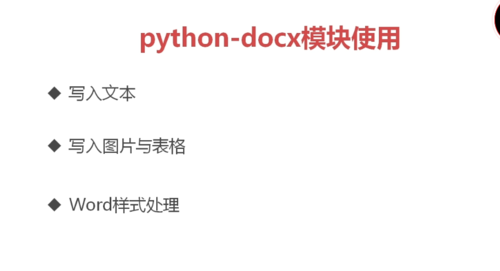
样式的是可以各个元素都可以设置,这样可以形成同一个的风格,分为两类形式属性和格式属性
from docx.enum.style import WD_STYLE_TYPE

#添加样式
style=document.styles.add_style('textstyle',WD_STYLE_TYPE.PARAGRAPH)
print(style.style_id)
print(style.name)
style.font.size=Pt(5)#样式
#使用
p1 = document.add_paragraph(
'慕课网是垂直的互联网IT技能免费学习网站。以独家视频教程、在线编程工具、学习计划、问答社区为核心特色。在这里,你可以找到最好的互联网技术牛人,也可以通过免费的在线公开视频课程学习国内领先的互联网IT技术',style='textstyle')
p1.insert_paragraph_before('!!在段落前插入一个新的段落')p1 = document.add_paragraph(
#表格样式的设置, 其中参数的可以从下面的官网进行查询 table = document.add_table(rows=1, cols=3,style='Medium List 2')
http://python-docx.readthedocs.io
document.styles['textstyle'].delete()#删除样式
Word转PDF文件, 我们需要用到pywin32模块几乎包含win的API。
安装 :pip install pywin32
导入 from win32com.client import constants
其中 ExportAsFixedFormaopenpyxlt可以参考如下的说明
https://docs.microsoft.com/zh-cn/office/vba/api/Excel.Workbook.ExportAsFixedFormat
from win32com.client import constants,gencache
import os

def createpdf(wordPath,pdfPath):
    word=gencache.EnsureDispatch('Word.Application')
    doc=word.Documents.Open(wordPath,ReadOnly=1)
    #转换方法
    doc.ExportAsFixedFormaopenpyxlt(pdfPath,constants.wdExportFormatPDF)
    # word.Quit()
进行多个文件的转换
print(os.listdir('.')) #当前文件夹下的所有文件
wordfiles=[]
for file in os.listdir('.'):
    if file.endswith(('.doc','.docx')):
    wordfiles.append(file)
print(wordfiles)
for file in wordfiles:
  filepath=os.path.abspath(file)
    index=filepath.rindex('.')
    pdfpath=filepath[:index]+'.pdf'
    print(pdfpath)
createpdf(filepath,pdfpath)课程收获:
本章节主要的学习内容为样式的修改和word转pdf,文件的转换离不开win32提供的系统接口,具体哪些接口需要参考官网的说明
 随时随地看视频